

Each year, Apple’s new iOS arrives with some grand change to draw the eye. In iOS 26, it is the Liquid Glass design and Apple Intelligence, which promise translations, summaries, and even fresh emoji. These are large, obvious things that no one can fail to notice.
What is easier to miss are the smaller refinements, the ones Apple scarcely mentions. They may not earn applause on stage, yet they alter daily use in quiet ways. Spend time with Settings or the stock apps, and you will find them: simple tools, fresh options, and reminders that the iPhone keeps moving forward. Here are eighteen of the most useful hidden changes, and why they matter.
18 Hidden iOS 26 Features
1. Personalize Alarm Snooze Timing in iOS 26
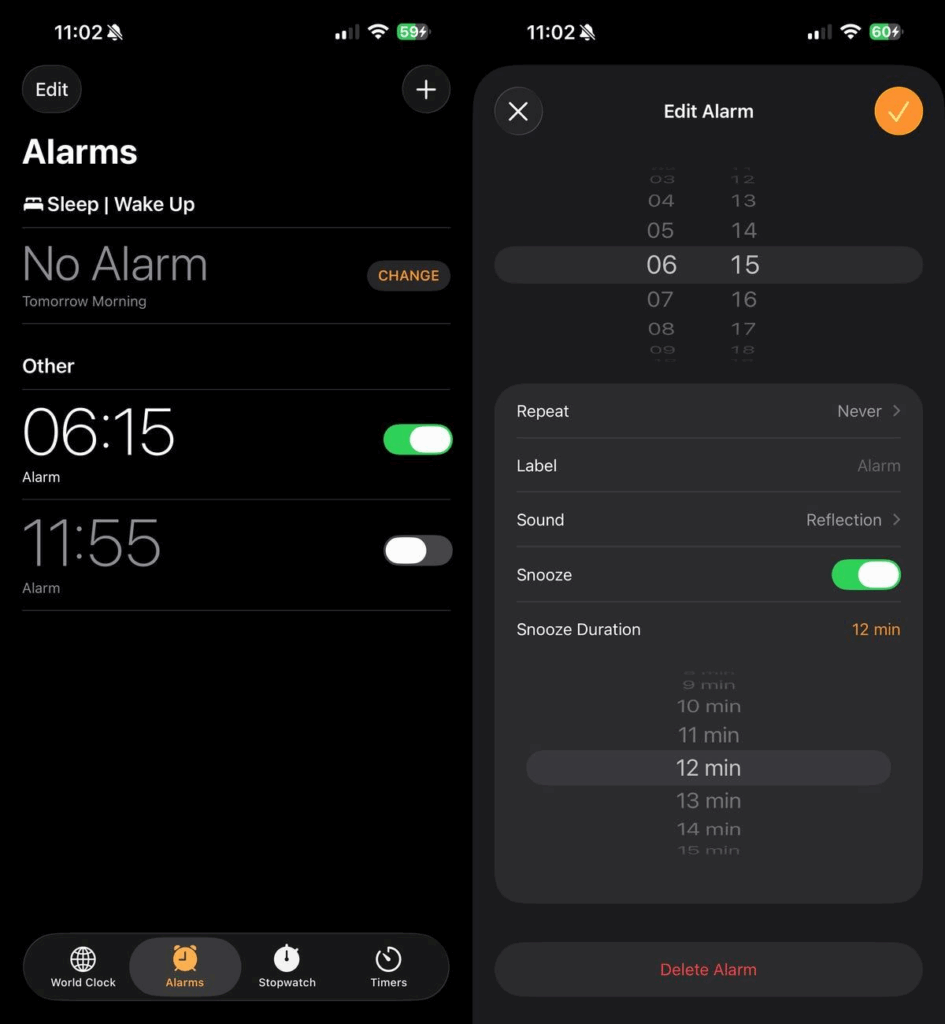
The curious nine-minute pause on alarms is a relic of mechanical limits, when clocks could not manage neat tens. Digital timekeepers never needed it, yet the habit endured. With iOS 26 you may set snooze from one to fifteen minutes, though the change binds to each alarm separately.
2. Set Custom Ringtones Without Extra Apps
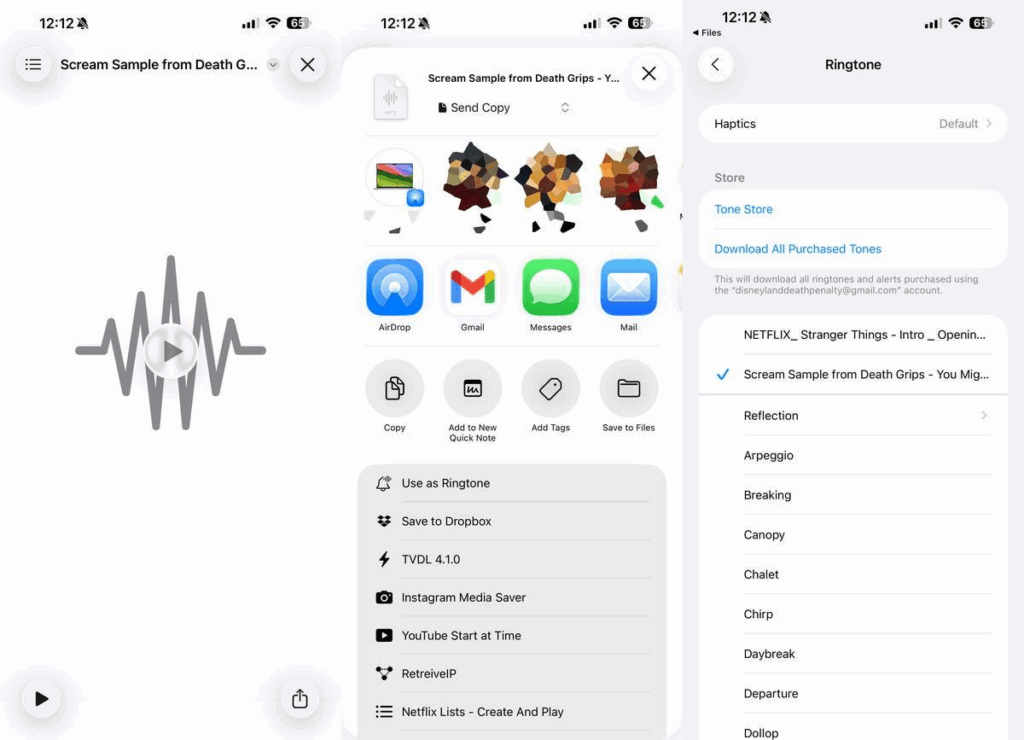
It is no longer necessary to struggle with GarageBand or carry your work to a computer. A sound file, if short enough, may be chosen within Files and set as a ringtone at once. The option applies also to Voice Memos, ready for any caller or alert.
3. Copy Specific Parts of Text Messages
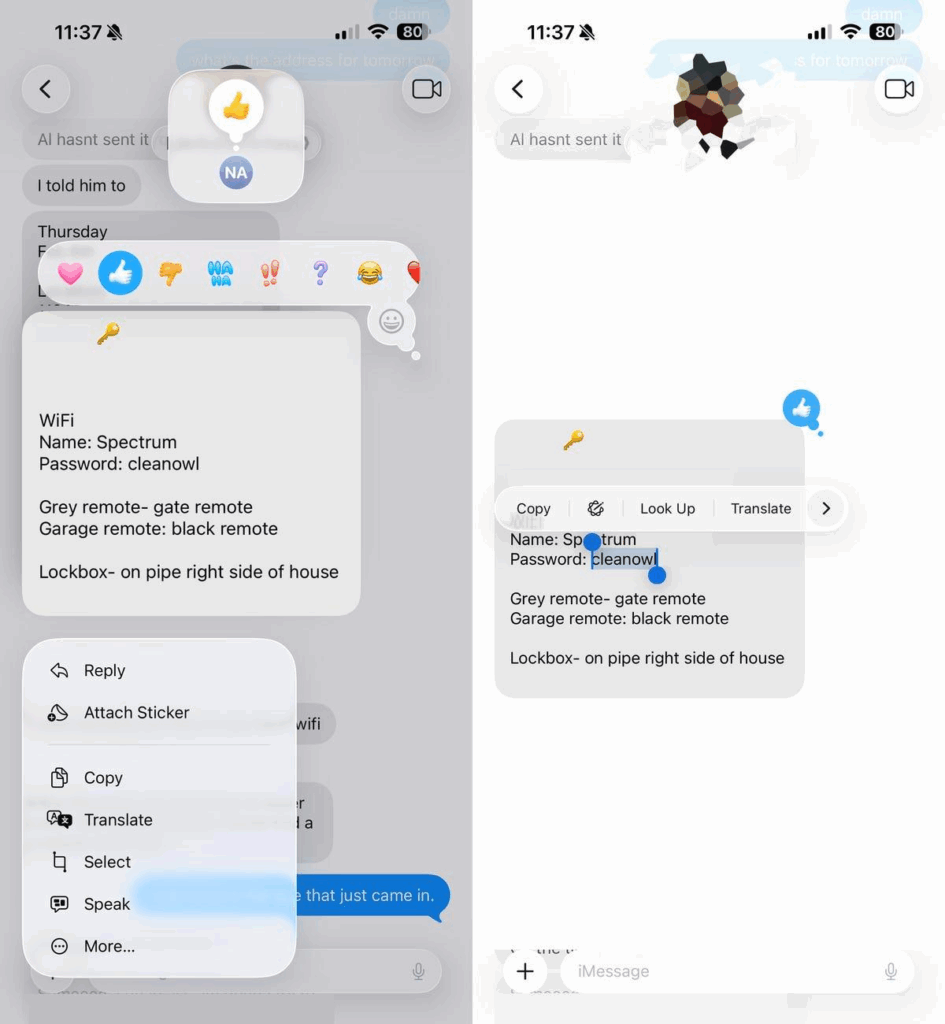
Until now, a message was treated as one indivisible block, and copying meant taking it all. iOS 26 changes this. You may press and hold, choose Select, and capture only what you need. It is best when a short code hides within a longer passage.
4. View Your Location History in Maps
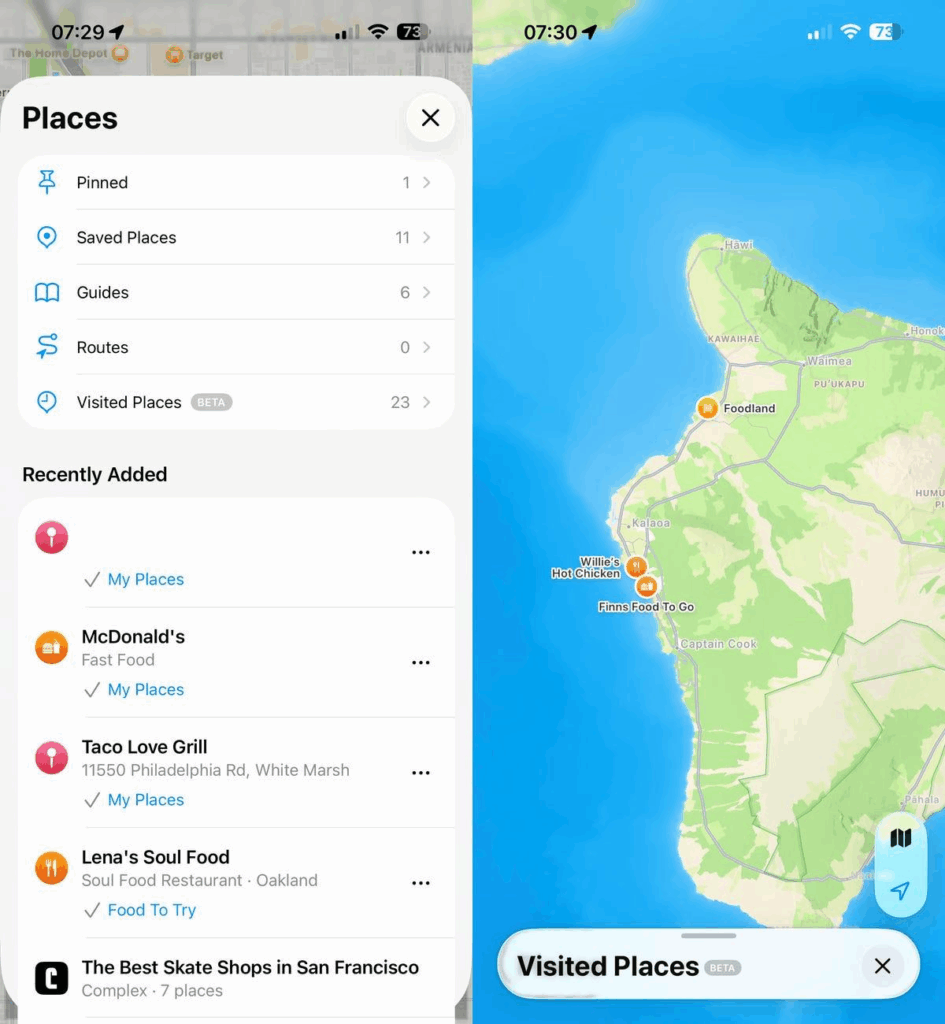
Instead of searching old photographs or scanning messages for a clue, Maps now remembers for you. Each place you have been – shop, café, or road – is listed with dates and details. The record is stored privately on the phone. Only you can see it by opening Visited Places.
5. Get Charging Time Estimates on iPhone
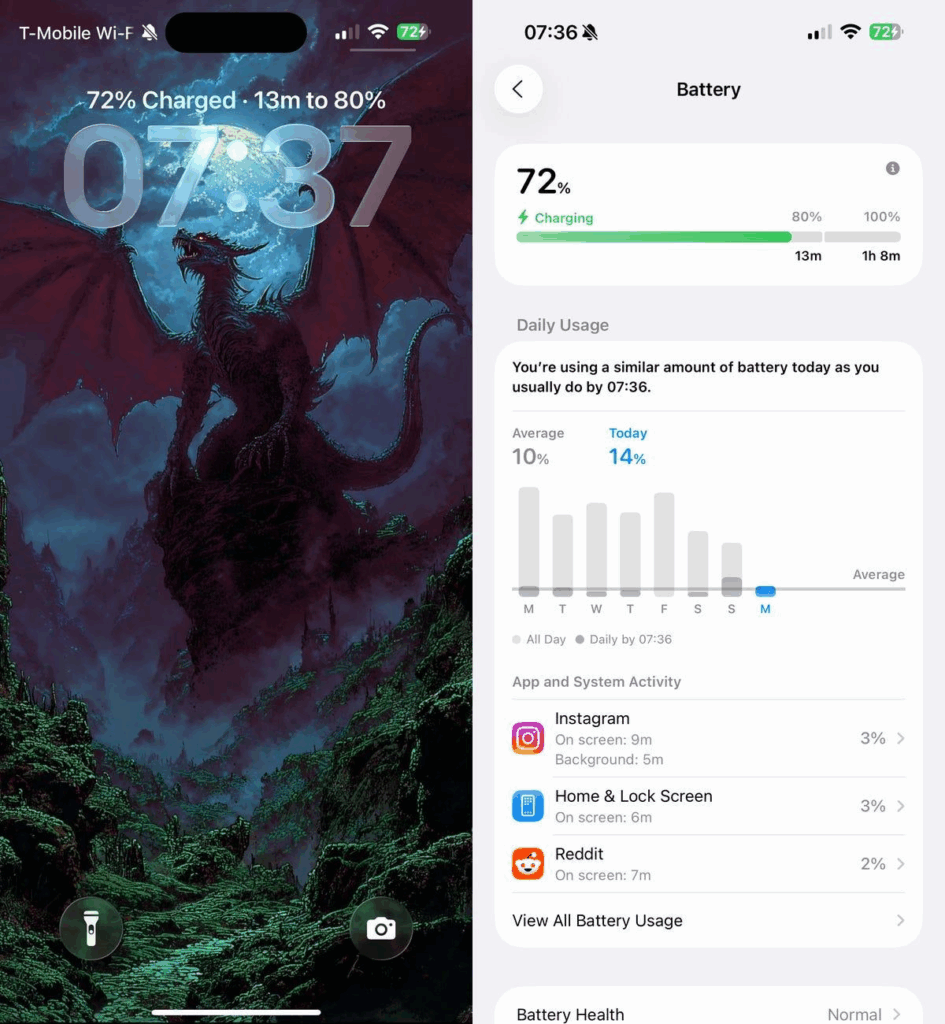
Once you connect your phone to power, the lock screen offers an exact forecast. It shows the minutes to reach eighty percent and the full charge beyond. The same figures appear in Settings. It is a small convenience, yet it removes doubt when preparing to leave quickly.
6. Smarter Battery Life with Adaptive Power Mode
The third option is an addition to the previous options of Standard and Low Power. It is known as Adaptive and it changes itself according to the changes in conditions. You do not have to make a decision every time. The phone makes decisions without any interference.
7. Convert Photos into Immersive 3D Spatial Scenes
Photos now has a button of Spatial Scenes that provides still pictures with depth and motion. When one has a supported phone, the tilt of the phone brings out the perspective as though the moment has been held in space and time waiting to be returned to.
8. Intelligent Screenshot Search With iOS 26
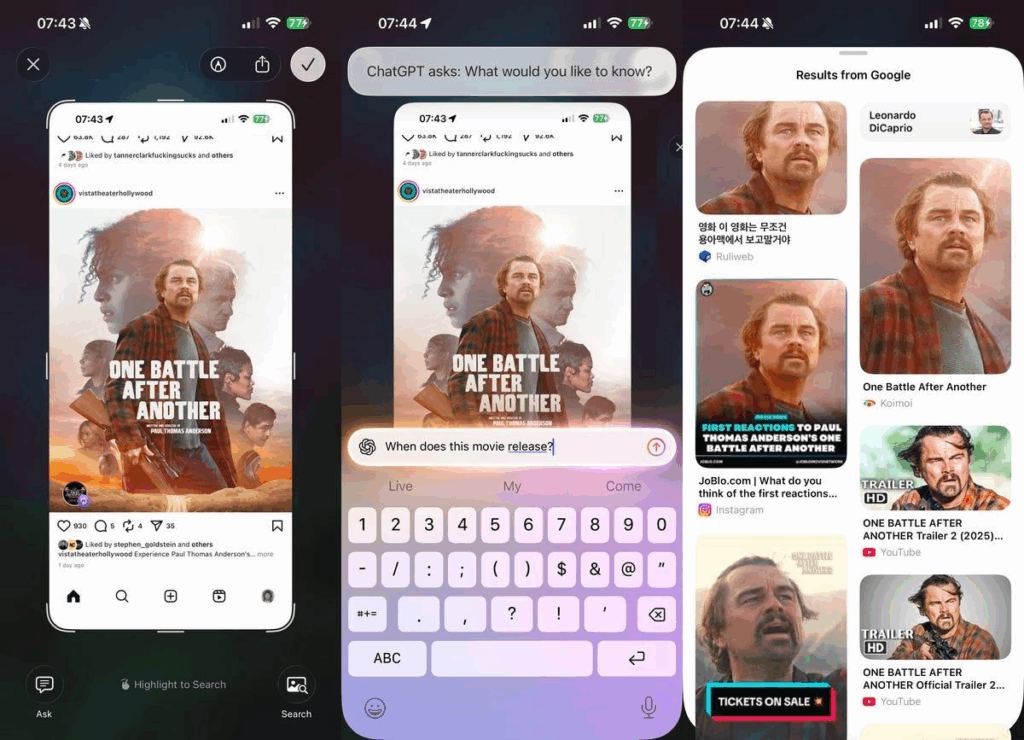
Screenshots are no longer lying in storage. The system immediately analyses them and gives actions. Recommendations such as the introduction of an event or shopping are shown.
9. Apple Music Adds Real-Time Lyric Translation
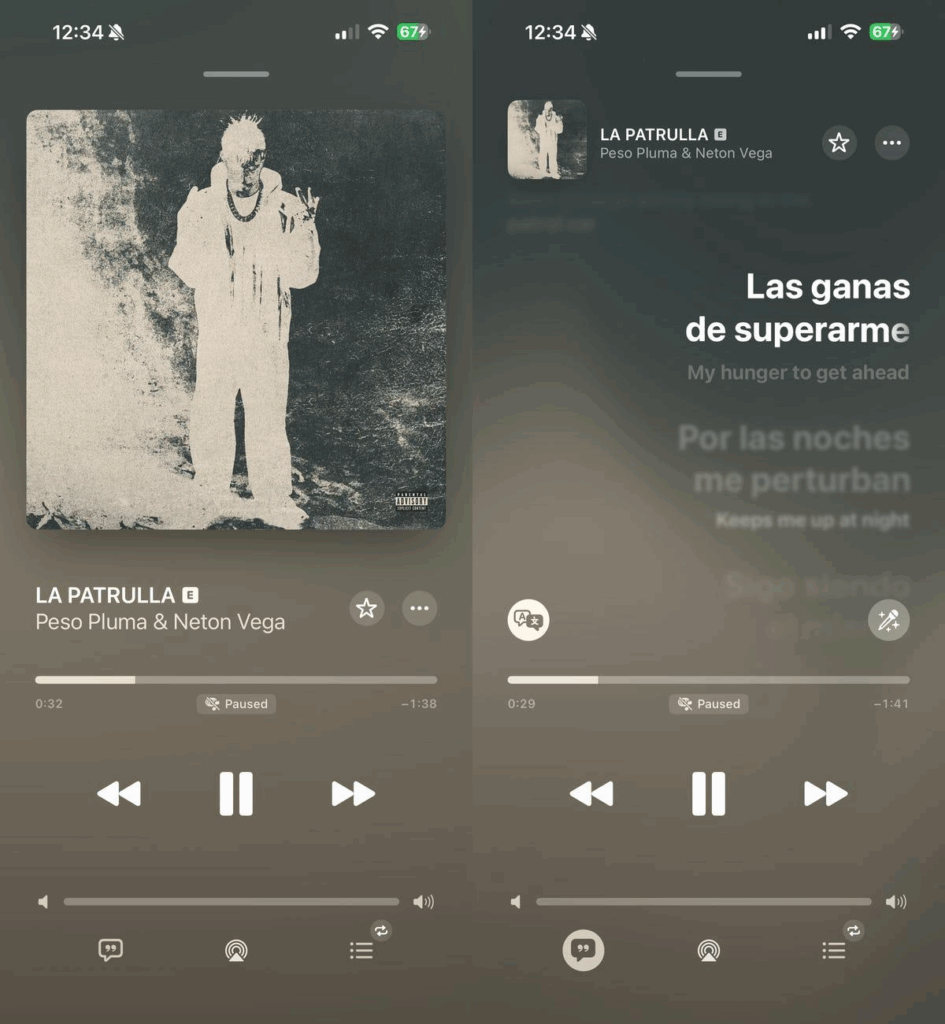
Live translation has now been introduced in Apple Music. Click the lyrics pane, and press the Translate button and the meaning will be displayed below every original line as the song progresses. It can be applied to the listeners who want to get acquainted with new cultures, without distorting the original character of the song.
10. Screen Unknown Callers Instantly
Live screening can now be done through the Phone app. On seeing an unknown number, press Screen Call and see the words spoken. You can then either respond, decline or place the call on voicemail. It is a borrowed feature that is enhanced and it puts you back in control.
11. Capture Photos Hands-Free Using AirPods
On the Camera app, one simply has to tap twice on an ear piece and the photo is captured. It assists in group shots, or when the phone is placed on a stand on the other side of the room. A mere touch eliminates the use of a remote control.
12. Customize iMessage With Chat Backgrounds
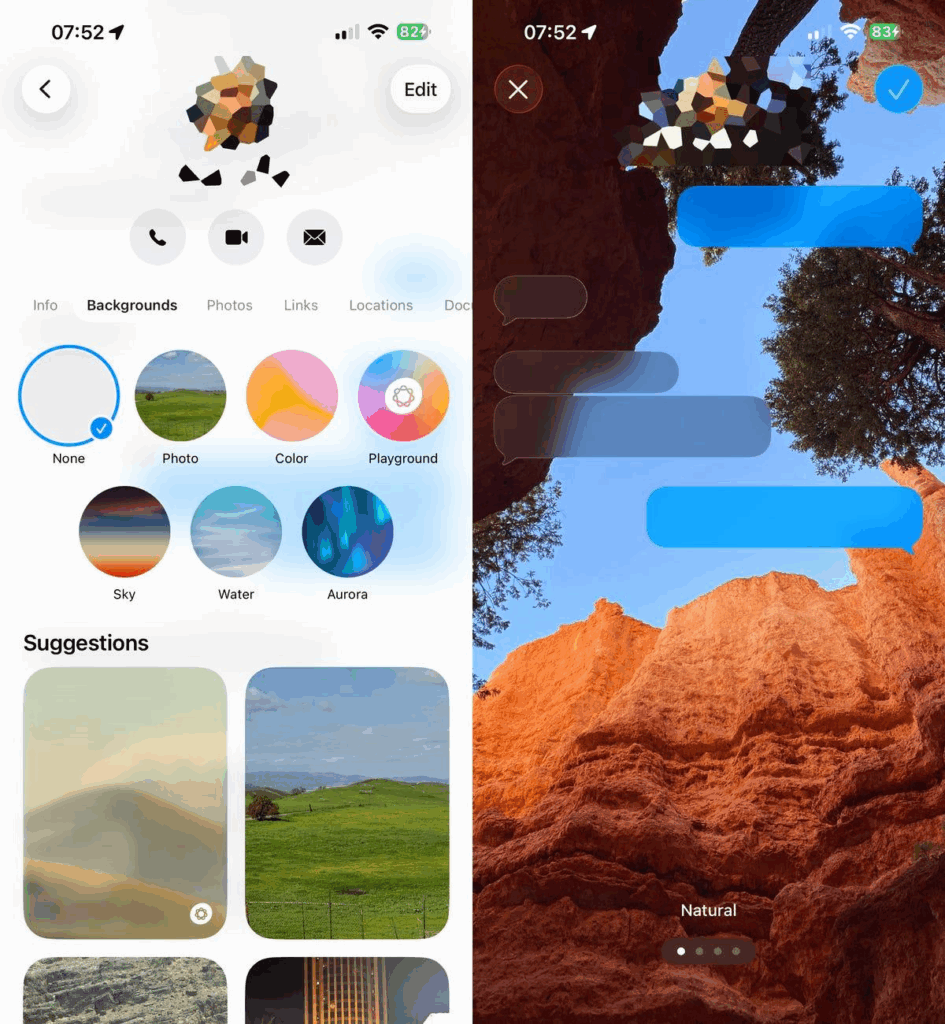
Click on the name at the top and then Backgrounds and then select a colour, a photograph, a gradient or even one created by the Image Playground. Every thread can be assigned its appearance, independent of all the others.
13. Edit PDF Files Directly in iOS 26
Preview is now available on the iPhone, though it was previously exclusive to macOS. A PDF can be opened in Mail or Files and with Markup you can underline words, take notes, sign contracts or move pages. It does not require any additional application.
14. Use Central Screen Swipe to Go Back
It is a new gesture that allows one to move backward without being fussy. You can now swipe in the middle of the screen as opposed to dragging along the edges of the screen. The gesture applies in both Mail and Safari as well as in Settings. It is instinctive, easy to master and you are not forced to hunt the very border every time.
15. Offline Weather Forecasts via Satellite
Weather app is now able to get satellite based forecasts in the event of network failure. You still see temperature, chances of rain and warnings in the mountains, on empty roads, or in other countries. An icon of a satellite is put at the top of the screen.
16. Automatic Alerts to Clean Camera Lens
In case the lens is obstructed by haze or grease, a brief message will be displayed before the shutter drops. A little prompt will make sure that you have the picture that you intended to capture.
17. HDR screenshots
Under HDR, the copy has the same brightness and contrast as the original image. Colours do not fade, lights do not fade. Saved to Photos, the difference is obvious: the screenshot is not deadened by the outdated boundaries.
18. Passport in Wallet
Wallet is now starting to carry passports in addition to cards. Add one in the same way as a license and it can be used at an airport or a border gate that accepts it. The message is simple, the roll-out is limited but the days of the leather wallet are numbered.
Final Words
The Apple marketing machine is fond of boasting of the big and shiny features that make people line up blocks long. It could be that it is time to get out of the tyranny of nine-minute snoozes, or it could be that you need to make your AirPods a remote camera, but either way, these eighteen hidden gems show that not all innovations have to scream. These are not the selling features of phones, but they are the ones that make you fall in love with the phone that you already have.