

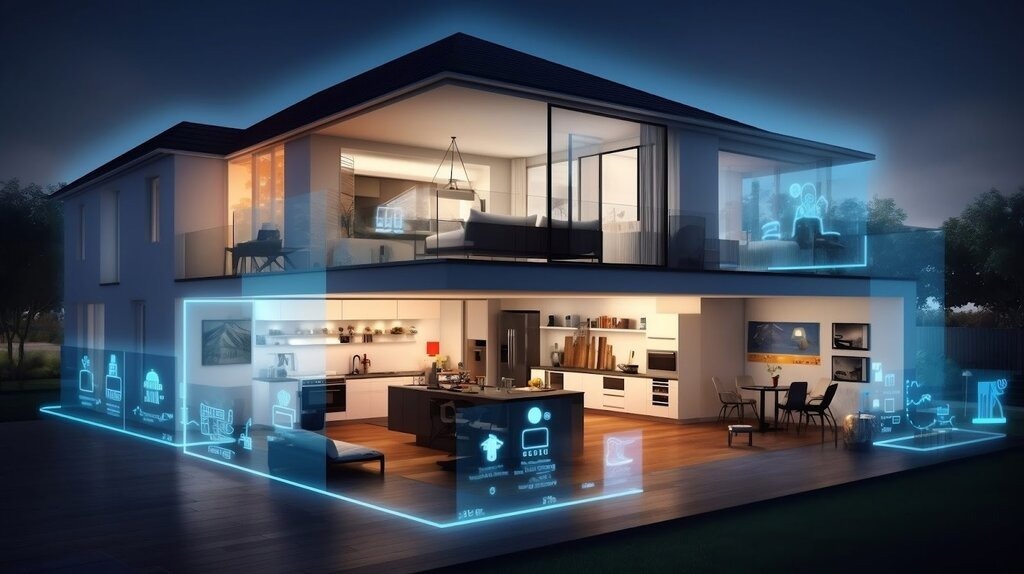
Remote work has pushed the home office from an afterthought to a core program element in residential projects. Clients now expect their video calls to be crisp, their cloud CAD files to sync quickly, and their kids to stream in the next room without wrecking the connection. For architects and residential designers, that means treating wireless performance like daylighting or acoustics. The practical way to do it is to combine space planning with an RF survey that produces a room-by-room Wi-Fi heatmap, then use those results to guide layout and equipment choices.
Start with space planning, not antennas
Plan first. In Cedreo’s floor plan software, draw the 2D layout, switch to 3D when needed, place key furnishings, and label the home office, quiet rooms, and high-density family areas.
For dedicated offices or hybrid conversions, use Cedreo’s office layouts to sketch desk clusters, call corners in 2D/3D. This makes it straightforward to see where strong RSSI must be guaranteed and where minor dips are acceptable.
What an RSSI heatmap actually tells you
A Wi-Fi heatmap visualizes measured RSSI, the received signal strength in dBm, at many points throughout the home. The map uses a color scale so that stronger signals show up as “hotter” zones. Tools let you raise or lower the RSSI threshold to highlight only areas that meet your target service level, which is useful when you’re designing specifically for video calls.
How strong is “good enough”? Vendor design guides for Wi-Fi 6 and 6E aim for approximately −55 to −65 dBm in areas that require high performance, with the tighter end of that range for dense or latency-sensitive use. The exact target depends on throughput and client mix, yet this range is a reliable starting brief when you program a home office. A complementary rule of thumb for quality is SNR around 25 dB for voice and video stability.
To translate RF jargon for clients, Windows maps a 100 percent link-quality reading to about −50 dBm, and 0 percent to about −100 dBm, a handy way to connect on-screen percentages to real signal levels.
Interference and construction: why one room works and the next doesn’t
Two factors usually crater a “good on paper” Wi-Fi design: non-Wi-Fi interference and the building itself.
Non-Wi-Fi RF noise. The 2.4 GHz band is crowded. Microwaves leak RF near 2.45 GHz and can spike error rates for nearby 2.4 GHz links during operation. Bluetooth, Zigbee, and other 2.4 GHz systems share spectrum and may reduce responsiveness when many devices are active. In practice, this pushes home offices toward 5 GHz or 6 GHz where available.
Materials and assemblies. Walls and floors don’t just “reduce bars.” They attenuate specific frequencies by measurable amounts. Independent testing shows heavy concrete can add roughly 23 dB of loss at 2.4 GHz and ~45 dB at 5 GHz; even drywall partitions can double the attenuation at 5 GHz compared with 2.4 GHz. Mirrors, tinted low-E glass, ceramic tile, and water also block or scatter RF more than owners expect. These realities are why an office behind a tiled bath or below a concrete slab often tests worse than the living room next door.
As path loss grows, Wi-Fi adapts to lower modulation rates, so the link still connects but throughput and stability drop. That’s when a client reports that file syncs “take forever” or Zoom gets choppy.
A simple architect’s workflow for Wi-Fi–aware home offices
- Program the spaces in Cedreo: Draw the existing or proposed plan, label the office, communal living zones, and media areas, and place major RF-relevant elements like appliances or built-in shelving. Export annotated 2D plans and 3D visuals for the survey brief.
- Set design thresholds: For home-office areas, brief your integrator to test to −60 dBm RSSI or better and ~25 dB SNR at typical laptop height. For general living spaces, −67 to −70 dBm may be acceptable depending on usage.
- Measure and map: Conduct a walk survey at 5 GHz and 2.4 GHz, logging RSSI at regular grid points on your plan. Generate heatmaps for each band so you can compare “green” office zones against “yellow” or “blue” problem rooms.
- Analyze the gaps: Correlate cold spots with construction and interference. Pay attention to concrete shear walls, tiled baths, chimney stacks, mirrored closets, or low-E glazing between the router and the home office. Use the attenuation figures above to explain results to clients.
- Adjust equipment and layout together: Move APs just like you’d move task lighting or furniture in Cedreo’s plan to shorten paths, and specify the right hardware strategy for the envelope and occupancy.
Two quick examples
Example A: 70 m² apartment, single work-from-home user
The AP is in the living room media console; the home office is a small bedroom separated by a tiled bath. Survey points show −58 to −62 dBm in the living room but −72 to −76 dBm at the desk during business hours, with microwave use briefly worsening to 2.4 GHz. The fix is simple: relocate the AP to the corridor near the office door and favor 5 GHz for the laptop’s SSID. The revised heatmap meets a −60 dBm target in the office without adding hardware, and the client learns to expect minor dips if the microwave is running.
Example B: 180 m² two-story house, two simultaneous video callers.
The router sits at one end of the ground floor; the primary office is upstairs behind a reinforced slab. 5 GHz measurements upstairs average −75 dBm, and SNR falls under 20 dB when a neighbor’s AP hops into the same channel. Here the plan-plus-RF approach suggests moving to a ceiling-mounted AP upstairs and a wired backhaul to avoid adding 2.4 GHz congestion. The design target is −60 to −65 dBm in both offices, which typically requires two APs with limited overlap and smart channel planning. Aruba’s campus design guidance supports those targets for modern clients.
Equipment and placement recommendations for telework
These are hardware-agnostic, architecture-first suggestions that play nicely with residential design constraints:
- Prioritize 5 GHz or 6 GHz for the office SSID where devices support it: These bands face less non-Wi-Fi interference than 2.4 GHz, which improves stability during calls.
- Target −55 to −65 dBm at the seated position in the office, and aim for ~25 dB SNR for video and voice: Translate this into plan notes just like you would for lux levels or NC ratings.
- Mind cell size and overlap: Reduce AP transmit power if necessary so clients don’t cling to a distant AP. Overlap should be enough for roaming without flooding the floor with co-channel contention.
- Respect materials: If the office sits behind concrete or tiled assemblies, plan an AP on the same side of the barrier. Expect significantly higher loss at 5 GHz through heavy concrete.
- Watch the kitchen: If an office shares a wall with a kitchen, keep the primary work device on 5 GHz and avoid placing the AP near the microwave line of sight.
- Measure both bands and validate after move-in: A short post-occupancy survey catches changes like a new mirrored wardrobe or a neighbor’s new AP that shifts the noise floor.
Why designers should own this conversation
Clients rarely budget for wireless until it becomes a pain point. By front-loading the discussion, you can keep the budget modest and the results strong. Cedreo helps you communicate the plan quickly by pairing accurate 2D and 3D layouts with visuals, so owners understand where the office sits, why an AP is on the ceiling instead of in a cabinet, and what performance they should expect room by room. It’s the same sales story you already tell with kitchens and baths, now applied to connectivity.
Putting it all together
- Use Cedreo to define the layout, program the office, and set expectations with 2D and 3D visuals.
- Brief your integrator on target levels: roughly −60 dBm RSSI and 25 dB SNR in home-office zones.
- Conduct a dual-band survey and generate heatmaps that match the architectural plan.
- Address interference and construction with smart AP placement and the right backhaul. Expect heavier losses through concrete, tile, mirrors, and low-E glass.
Designers don’t need to become RF engineers to deliver solid remote-work performance. You only need a clear brief, a measured map, and a plan that respects both people and physics. Handle those steps in the same toolset you already use to sell a design narrative, and clients will notice that their home offices look great and work great.